> ## Documentation Index
> Fetch the complete documentation index at: https://docs.camb.ai/llms.txt
> Use this file to discover all available pages before exploring further.
# Next.js (Page Router)
> Configure CAMB AI Website Translator in a Next.js project using the Page Router.
This step-by-step guide walks you through configuring Website Translation in a Next.js project that uses the **Page Router**. It includes the exact `Script` configuration, best practices, and troubleshooting tips.
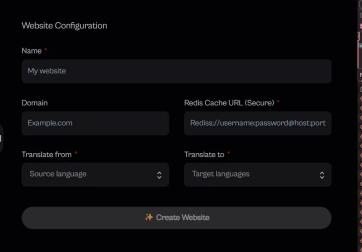
## Step 1 — Create your Website Configuration
In CAMB AI Studio, open the **Website Configuration** form and fill in the following:
* **Name** — A friendly name for your project (e.g., `My website`).
* **Domain** — Your production domain (e.g., `example.com`).
* **Redis Cache URL (Secure)** — A secure `rediss://` connection string for caching translations. See [Set up Redis with Upstash](/other-products/website-translation/redis-cache) if you don't have one.
* **Translate from** — The source language for your content.
* **Translate to** — One or more target languages.
Click **Create Website** to generate your API key.
 ## Step 2 — Add the script in Next.js
Integrate the script using Next.js's [`next/script`](https://nextjs.org/docs/pages/api-reference/components/script) in `pages/_app.tsx`. Make sure the `data-api-key` attribute comes **before** the `strategy` prop, exactly as shown below.
```tsx pages/_app.tsx theme={null}
import Script from "next/script";
import type { AppProps } from "next/app";
export default function MyApp({ Component, pageProps }: AppProps) {
return (
<>
{/* Website Translate Script */}
);
}
```
**Why this works:** The script loads after the page becomes interactive, minimizing render-blocking. The `data-api-key` attribute securely passes your key to the client script.
### Optional — Manage the API key via environment variable
If you prefer not to hard-code the key, expose it as `NEXT_PUBLIC_TRANSLATOR_API_KEY` and pass it to the `Script` tag:
```bash .env.local theme={null}
NEXT_PUBLIC_TRANSLATOR_API_KEY=your-api-key
```
```tsx pages/_app.tsx theme={null}
```
## Step 3 — Deploy and verify
1. Deploy your Next.js app as usual (Vercel, Netlify, or your preferred platform).
2. Open your site in a browser and confirm that a **translation dropdown appears automatically**.
3. Switch languages and verify page text is translated without layout shifts or flashes.
## Best practices for a great UX
* **Warm the cache.** After deployment, visit your key pages yourself and wait for the initial translation to complete so future visitors get instant translations.
* **Keep phrases intact.** Avoid splitting single words or short phrases into many tiny elements — translation accuracy is higher when the translator sees whole sentences.
### Exclude content from translation
Use HTML attributes or classes to skip specific elements:
```html theme={null}
## Step 2 — Add the script in Next.js
Integrate the script using Next.js's [`next/script`](https://nextjs.org/docs/pages/api-reference/components/script) in `pages/_app.tsx`. Make sure the `data-api-key` attribute comes **before** the `strategy` prop, exactly as shown below.
```tsx pages/_app.tsx theme={null}
import Script from "next/script";
import type { AppProps } from "next/app";
export default function MyApp({ Component, pageProps }: AppProps) {
return (
<>
{/* Website Translate Script */}
);
}
```
**Why this works:** The script loads after the page becomes interactive, minimizing render-blocking. The `data-api-key` attribute securely passes your key to the client script.
### Optional — Manage the API key via environment variable
If you prefer not to hard-code the key, expose it as `NEXT_PUBLIC_TRANSLATOR_API_KEY` and pass it to the `Script` tag:
```bash .env.local theme={null}
NEXT_PUBLIC_TRANSLATOR_API_KEY=your-api-key
```
```tsx pages/_app.tsx theme={null}
```
## Step 3 — Deploy and verify
1. Deploy your Next.js app as usual (Vercel, Netlify, or your preferred platform).
2. Open your site in a browser and confirm that a **translation dropdown appears automatically**.
3. Switch languages and verify page text is translated without layout shifts or flashes.
## Best practices for a great UX
* **Warm the cache.** After deployment, visit your key pages yourself and wait for the initial translation to complete so future visitors get instant translations.
* **Keep phrases intact.** Avoid splitting single words or short phrases into many tiny elements — translation accuracy is higher when the translator sees whole sentences.
### Exclude content from translation
Use HTML attributes or classes to skip specific elements:
```html theme={null}
BrandName
CodeSnippet()
```
### Style the translation dropdown
Customize the dropdown via CSS variables:
```css theme={null}
:root {
/* Position */
--tl-position: fixed;
--tl-bottom: 24px;
--tl-right: 24px;
--tl-top: auto;
--tl-left: auto;
--tl-z-index: 9999;
/* Appearance */
--tl-bg: #333;
--tl-bg-hover: #555;
--tl-color: #fff;
--tl-border: none;
--tl-border-radius: 4px;
--tl-box-shadow: 0 2px 10px rgba(0, 0, 0, 0.1);
/* Typography */
--tl-font-family: "Inter", sans-serif;
--tl-font-size: 14px;
--tl-font-weight: 500;
--tl-line-height: 1;
/* Spacing */
--tl-padding: 12px 16px;
--tl-margin: 0;
--tl-min-width: 120px;
--tl-width: auto;
--tl-height: auto;
/* Options */
--tl-option-bg: #333;
--tl-option-color: #fff;
--tl-option-padding: 8px 12px;
/* Loading state */
--tl-loading-opacity: 0.7;
--tl-loading-icon: "⟳";
--tl-loading-margin: 8px;
--tl-loading-duration: 1s;
/* Focus */
--tl-outline: 2px solid #007acc;
--tl-outline-offset: 2px;
/* Transition */
--tl-transition: all 0.2s ease;
}
```
## Troubleshooting
Verify that `pages/_app.tsx` includes the `Script` block and that your API key is correct. Hard-refresh the page (Cmd/Ctrl + Shift + R) and check the browser console for script errors.
The first pass may be warming the cache. Visit the page once and try again — subsequent loads will pull translations from Redis.
Rarely, browser extensions may block third-party scripts. Test in a clean browser profile or incognito window.
## Security & configuration notes
* **Only use the official script source:** `https://storage.googleapis.com/website-translation-script/translator.js`.
* **Prefer environment variables** (`NEXT_PUBLIC_TRANSLATOR_API_KEY`) for manageability across environments.
* **Use a secure Redis URL.** Your Redis Cache URL must use `rediss://` (TLS-encrypted) — never plain `redis://`.