> ## Documentation Index
> Fetch the complete documentation index at: https://docs.camb.ai/llms.txt
> Use this file to discover all available pages before exploring further.
# Set up Redis with Upstash
> Provision a free serverless Redis instance for caching website translations.
CAMB AI Website Translation uses Redis to cache translated text so visitors get instant page loads after the first visit. This guide walks you through creating a free Redis database on [Upstash](https://upstash.com) and wiring it up to your Website Configuration.
## 1. Sign up for Upstash
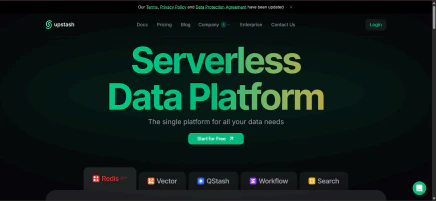
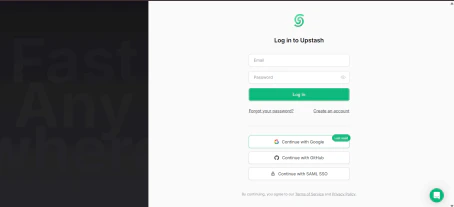
Navigate to [https://upstash.com](https://upstash.com).
 Create an account using GitHub, Google, or email.
 After signing in, you'll be directed to the **Upstash Console**.
 ## 2. Create a new Redis database
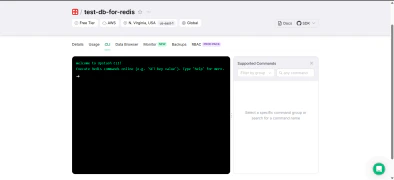
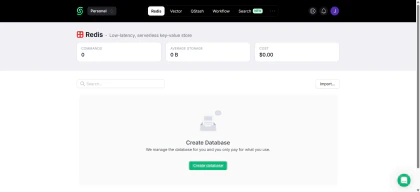
From the dashboard, select **Redis** and then **Create Database**.
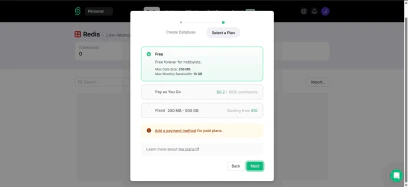
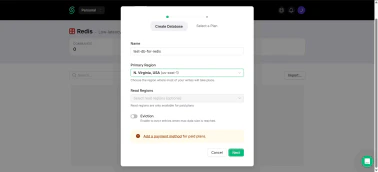
Configure the database:
* **Name** — Assign a descriptive name (for example, `project-cache-db`).
* **Region** — Select a region close to your application hosting location to minimize latency.
* **Plan** — Choose the free plan if you're testing or working on a small project.
## 2. Create a new Redis database
From the dashboard, select **Redis** and then **Create Database**.
Configure the database:
* **Name** — Assign a descriptive name (for example, `project-cache-db`).
* **Region** — Select a region close to your application hosting location to minimize latency.
* **Plan** — Choose the free plan if you're testing or working on a small project.
 Click **Create**. After a few seconds, your database will be available.
 ## 3. Access connection details
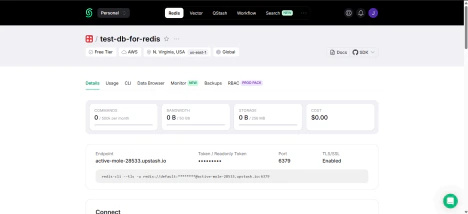
Once the database is created, you'll see:
* The **REST API URL**
* The **REST Token**
* The **Redis Connection URL** — this is what you'll paste into your CAMB AI Website Configuration as the **Redis Cache URL (Secure)**.
## 3. Access connection details
Once the database is created, you'll see:
* The **REST API URL**
* The **REST Token**
* The **Redis Connection URL** — this is what you'll paste into your CAMB AI Website Configuration as the **Redis Cache URL (Secure)**.
 Make sure the Redis Connection URL you copy starts with `rediss://` (note the double `s`). This is the TLS-encrypted endpoint required by the Website Translator.
## 4. Clearing the Redis cache
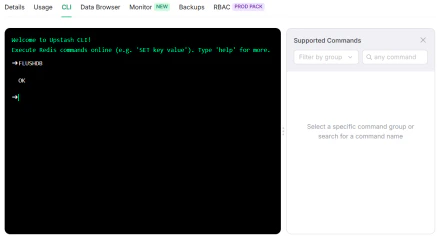
If you need to clear all cached translations from your Redis database, use the Flush functionality.
* From the Upstash Console, open your Redis database.
* Navigate to the **CLI** tab.
Make sure the Redis Connection URL you copy starts with `rediss://` (note the double `s`). This is the TLS-encrypted endpoint required by the Website Translator.
## 4. Clearing the Redis cache
If you need to clear all cached translations from your Redis database, use the Flush functionality.
* From the Upstash Console, open your Redis database.
* Navigate to the **CLI** tab.
 * Execute the `FLUSHALL` or `FLUSHDB` command.
 ## 5. Time-to-Live (TTL) and inactivity
Redis allows you to set a time-to-live (TTL) on keys. The TTL specifies how long a key remains in the cache before being automatically deleted.
Key points about TTL behavior:
* **Expiration** — When the TTL for a key reaches zero, Redis automatically deletes it.
* **No TTL set** — If you don't set a TTL, the key will persist until explicitly removed.
* **Inactivity** — Redis does not automatically expire keys due to inactivity unless a TTL has been defined.
## 6. Monitoring and management
In the Upstash dashboard, you can:
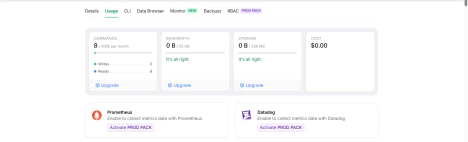
* Review memory usage and request metrics by going to the **Usage** tab.
## 5. Time-to-Live (TTL) and inactivity
Redis allows you to set a time-to-live (TTL) on keys. The TTL specifies how long a key remains in the cache before being automatically deleted.
Key points about TTL behavior:
* **Expiration** — When the TTL for a key reaches zero, Redis automatically deletes it.
* **No TTL set** — If you don't set a TTL, the key will persist until explicitly removed.
* **Inactivity** — Redis does not automatically expire keys due to inactivity unless a TTL has been defined.
## 6. Monitoring and management
In the Upstash dashboard, you can:
* Review memory usage and request metrics by going to the **Usage** tab.
 * Monitor keys and expiration patterns.
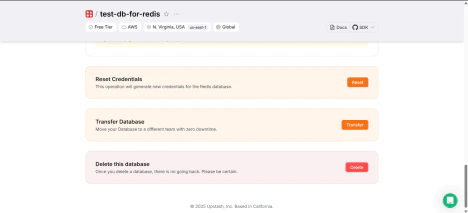
* Reset credentials or delete the database when no longer needed.
* Monitor keys and expiration patterns.
* Reset credentials or delete the database when no longer needed.
 ## 7. Connect Redis to your Website Configuration
With your Upstash database ready, integrate it into CAMB AI Studio:
1. Open the **Website Configuration** form in Studio.
## 7. Connect Redis to your Website Configuration
With your Upstash database ready, integrate it into CAMB AI Studio:
1. Open the **Website Configuration** form in Studio.
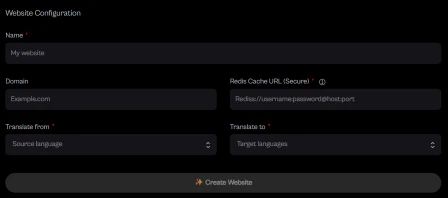
 2. Provide the following:
* **Name** — A friendly name for your project (e.g., `My Website`).
* **Domain** — Your production domain (e.g., `example.com`).
* **Redis Cache URL (Secure)** — The secure `rediss://` connection string from your Upstash database.
* **Translate From** — The source language for your website's content.
* **Translate To** — One or more target languages.
3. Click **Create Website**. This generates an API key for your project, which your application can use to fetch and cache translations.
Next, see [Next.js (Page Router)](/other-products/website-translation/nextjs-page-router) to drop the script into your app.
2. Provide the following:
* **Name** — A friendly name for your project (e.g., `My Website`).
* **Domain** — Your production domain (e.g., `example.com`).
* **Redis Cache URL (Secure)** — The secure `rediss://` connection string from your Upstash database.
* **Translate From** — The source language for your website's content.
* **Translate To** — One or more target languages.
3. Click **Create Website**. This generates an API key for your project, which your application can use to fetch and cache translations.
Next, see [Next.js (Page Router)](/other-products/website-translation/nextjs-page-router) to drop the script into your app.