

1. Sign up for Upstash
Navigate to https://upstash.com.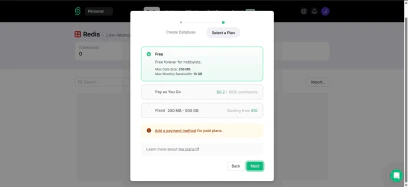
Figure 1 — Upstash landing page

Figure 2 — Upstash login page
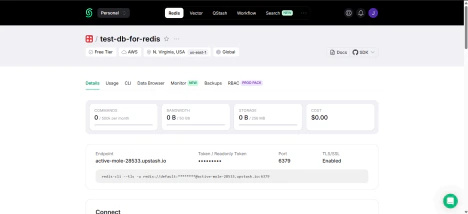
Figure 3 — Upstash Console
2. Create a new Redis database
From the dashboard, select Redis and then Create Database. Configure the database:- Name — Assign a descriptive name (for example,
project-cache-db). - Region — Select a region close to your application hosting location to minimize latency.
- Plan — Choose the free plan if you’re testing or working on a small project.
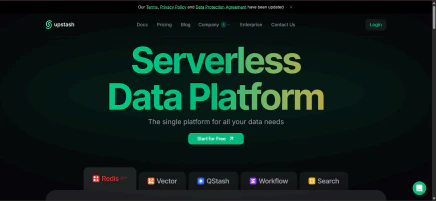
Figure 4 — Create Database
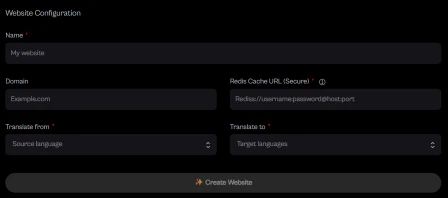
Figure 5 — Select a Plan
Figure 6 — Redis database dashboard
3. Access connection details
Once the database is created, you’ll see:- The REST API URL
- The REST Token
- The Redis Connection URL — this is what you’ll paste into your CAMB AI Website Configuration as the Redis Cache URL (Secure).
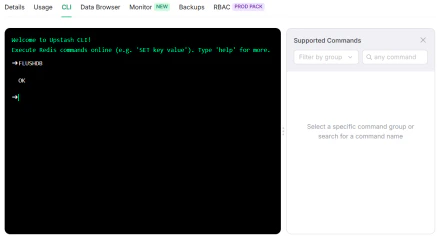
Figure 7 — Redis database connection details
4. Clearing the Redis cache
If you need to clear all cached translations from your Redis database, use the Flush functionality.- From the Upstash Console, open your Redis database.
- Navigate to the CLI tab.
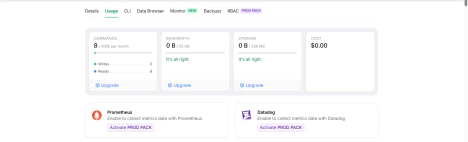
Figure 8 — CLI tab
- Execute the
FLUSHALLorFLUSHDBcommand.
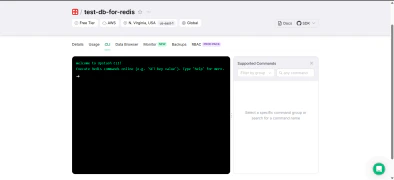
Figure 9 — FLUSHDB command
5. Time-to-Live (TTL) and inactivity
Redis allows you to set a time-to-live (TTL) on keys. The TTL specifies how long a key remains in the cache before being automatically deleted. Key points about TTL behavior:- Expiration — When the TTL for a key reaches zero, Redis automatically deletes it.
- No TTL set — If you don’t set a TTL, the key will persist until explicitly removed.
- Inactivity — Redis does not automatically expire keys due to inactivity unless a TTL has been defined.
6. Monitoring and management
In the Upstash dashboard, you can:- Review memory usage and request metrics by going to the Usage tab.
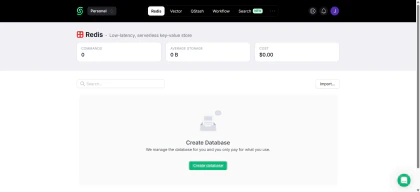
Figure 10 — Usage tab
- Monitor keys and expiration patterns.
- Reset credentials or delete the database when no longer needed.
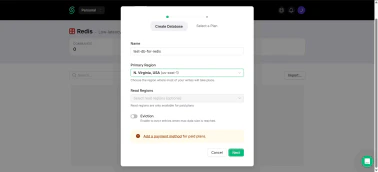
Figure 11 — Credentials management
7. Connect Redis to your Website Configuration
With your Upstash database ready, integrate it into CAMB AI Studio:- Open the Website Configuration form in Studio.
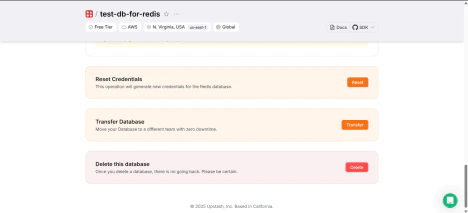
Figure 12 — Website Translation form on Studio
-
Provide the following:
- Name — A friendly name for your project (e.g.,
My Website). - Domain — Your production domain (e.g.,
example.com). - Redis Cache URL (Secure) — The secure
rediss://connection string from your Upstash database. - Translate From — The source language for your website’s content.
- Translate To — One or more target languages.
- Name — A friendly name for your project (e.g.,
- Click Create Website. This generates an API key for your project, which your application can use to fetch and cache translations.