

Step 1 — Open Chatterbox and start the test
- Launch the Chatterbox Desktop App from your Start Menu or desktop.
- Sign in with your CAMB AI Studio account if prompted.
- On the Home screen, confirm that your I Speak and They Hear languages look reasonable — you can adjust them later.
- At the bottom of the window, click Test Setup to start an automatic check of your audio configuration.
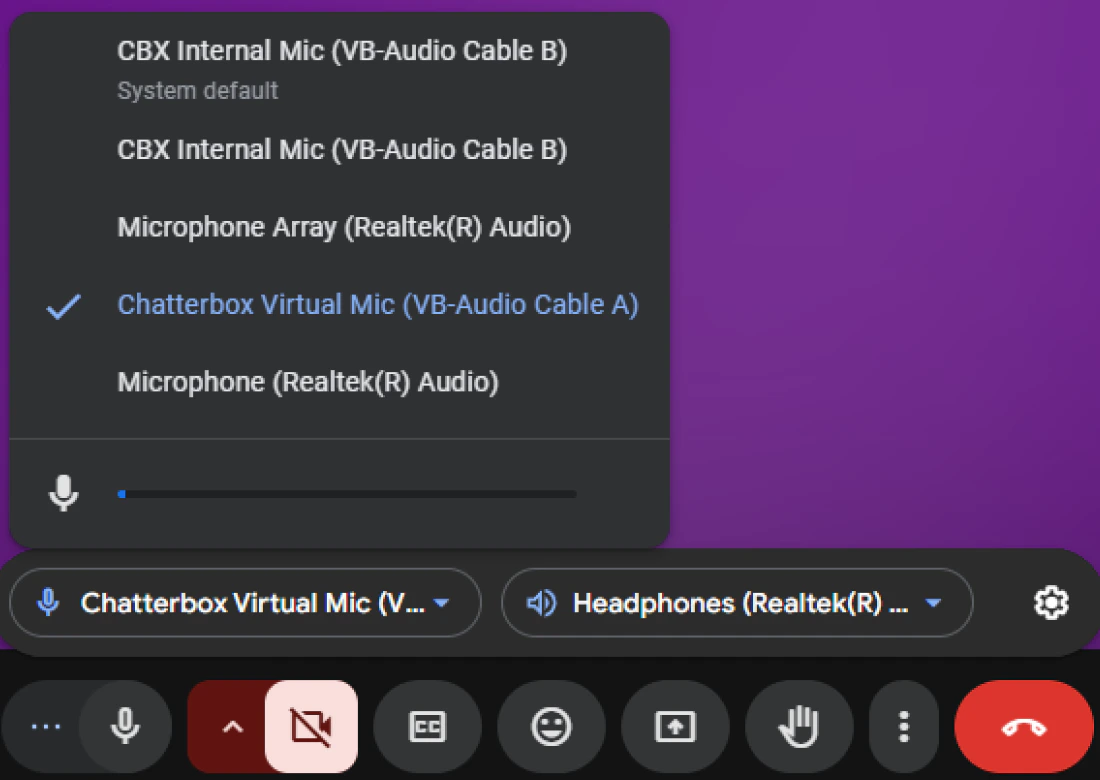
Step 2 — Verify that audio drivers are installed
A window titled Audio Device Setup appears on the Drivers Test step.- In the Verify Audio Drivers section, click Verify.
- The app checks whether the required Virtual Audio Drivers were correctly installed during setup and the reboot.
- Wait a few moments while the check runs.
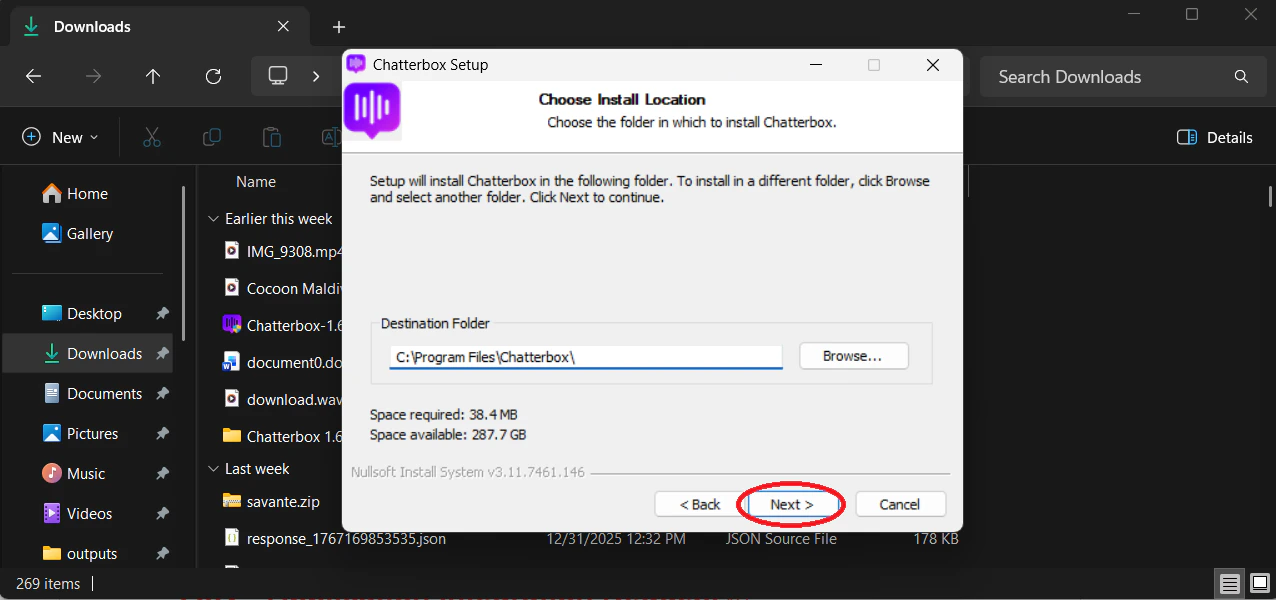
Step 3 — Confirm driver installation success
When verification completes, you should see a green success message such as Audio Drivers Installed Successfully along with a green checkmark. This means your system has the required audio drivers installed and configured, and Chatterbox can route audio correctly through them. Click Next Step to continue to the audio functionality test.
Step 4 — Test audio with the installed drivers
The next screen, Audio Test, lets you confirm the drivers are actually working, not just installed.- Ensure the speaker device at the top is set to the speakers or headphones you are currently using.
- Click Test Driver 1. You should hear a short test tone. A green Driver 1 Working message confirms the first audio path is functioning.
- Click Test Driver 2. Again, you should hear a short test tone. A green Driver 2 Working message confirms the second audio path is also functioning.
- Once both tests succeed, click Complete to close the Audio Device Setup window.
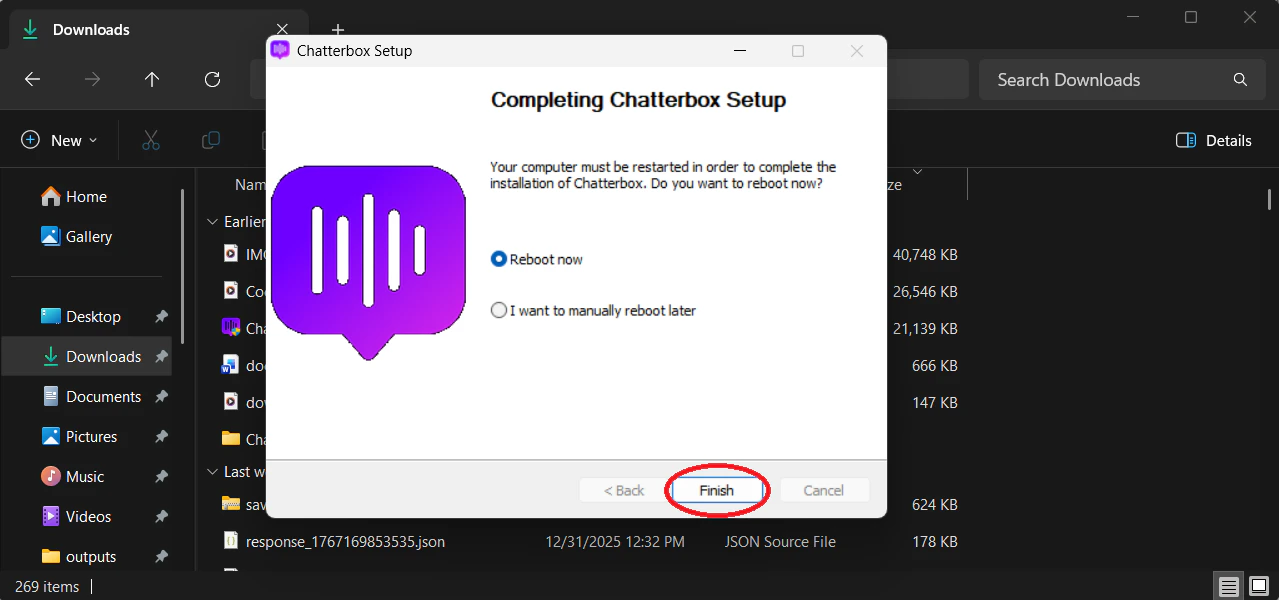
With both driver tests passing, your Virtual Audio Drivers are correctly installed and fully operational. You’re ready to start using Chatterbox in live meetings.